

OpenAI Chat Completion API Application and Usage
OpenAI ChatGPT is a very powerful AI conversational system. Simply by entering prompts, it can generate fluent and natural responses in just a few seconds. ChatGPT stands out in the industry with its excellent language understanding and generation capabilities. Today, ChatGPT has already been widely used across various industries and fields, and its influence is becoming increasingly significant. Whether for daily conversations, creative writing, professional consultation, or code programming, ChatGPT can provide astonishing intelligent assistance, greatly improving human work efficiency and creativity.
This document mainly introduces the usage process of OpenAI Chat Completion API operations. With it, we can easily use the conversation features of official OpenAI ChatGPT.
Compatible model requests accepted by the platform are billed according to the model's input, output, and cache usage. The prompt_tokens of Chat Completions include cached tokens, and the reported cached portion is billed at the corresponding cache price; switching API formats will not change this into fixed-per-request billing. Fees are subject to the current model prices in the console and usage.cost in the response.
¶ GPT-6.2 Astra and GPT-6.2 Sol
Use model: "gpt-6.2-astra" or model: "gpt-6.2-sol" to select a model. Text and image inputs and text output are supported. It is recommended to start with reasoning_effort: "low"; low, medium, high, xhigh, and max are supported, while none or minimal are not supported. For tool calls and structured outputs, use the public parameter format of the corresponding API.
The official context window is 1,050,000 tokens, with a maximum input of 922,000 and a maximum output of 128,000; actual requests must also comply with the parameter and account limits of this API. When input exceeds 272,000 tokens, the entire request uses the long-context rate: input and cache rates are 2 times the base tier, and output is 1.5 times. Prices and fees are subject to the current model prices in the console, the selected plan, and actual usage.
¶ GPT-6.1 Terra
Use model: "gpt-6.1-terra" to select this model. Text and image inputs and streaming output are supported; function tools and structured outputs should be called according to the parameter format of this API. The supported reasoning levels are low, medium, high, xhigh, and max, and it is recommended to start with reasoning_effort: "low"; none or minimal are not supported. Long-context pricing applies when input exceeds 272,000 tokens, and actual fees are subject to the current prices in the console and usage in the response.
¶ GPT-6.1 Sol
Use model: "gpt-6.1-sol" to select this model. Streaming output, function calling, structured output, and image input are supported. During the first week of availability, it is only available to verified ACE T1+ holders (at least 100,000 ACE) or authorized users; the specific availability time is subject to the access prompt in the console.
The supported reasoning levels are low, medium, high, xhigh, and max; none or minimal are not supported for now. It is recommended to start with reasoning_effort: "low". When input exceeds 272,000 tokens, long-context pricing applies to the entire request, and fees are subject to the current prices in the console.
¶ Application Process
To use the OpenAI Chat Completion API, first go to the jiasmart Console to obtain your API Token and keep it as a backup.
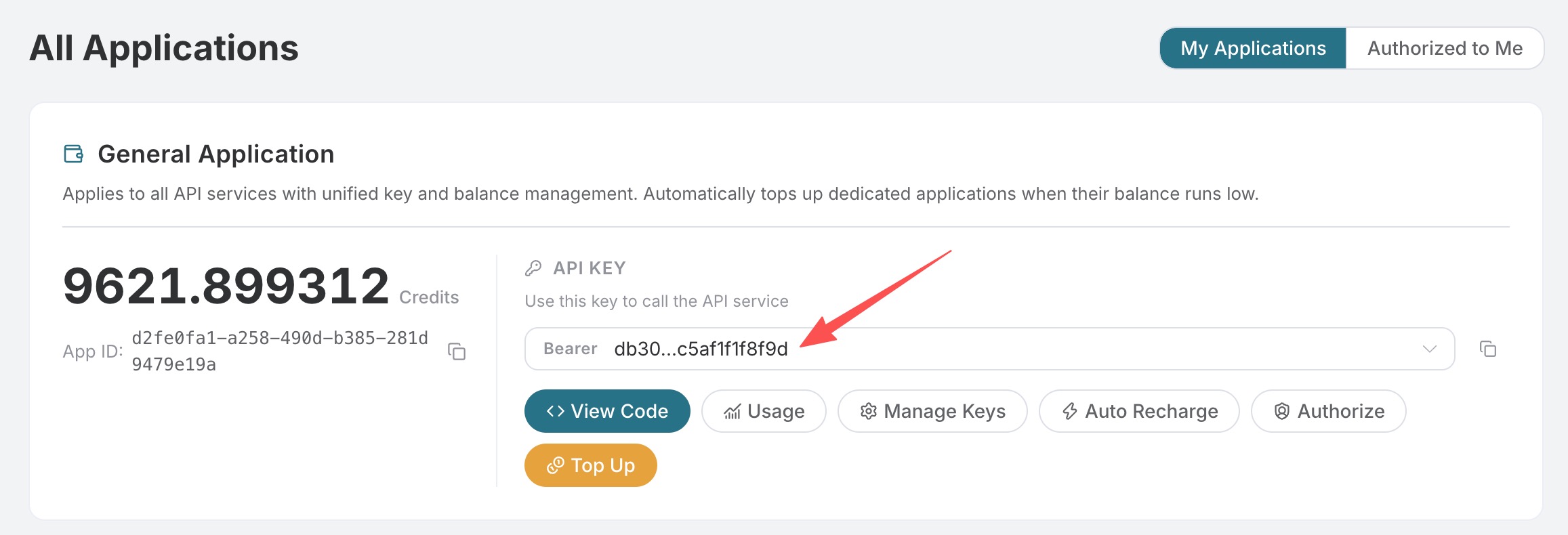
If you have not yet logged in or registered, you will be automatically redirected to the login page to register and log in, and you will automatically return to the current page after completion.
One API Token can call all platform services; there is no need to apply separately for each service. Your first application includes free credits for a free trial; when credits are insufficient, you can recharge your general balance in the console.
📘 Full documentation: OpenAI Chat Completion API →
¶ Basic Usage
Next, you can fill in the corresponding content in the interface, as shown in the image:
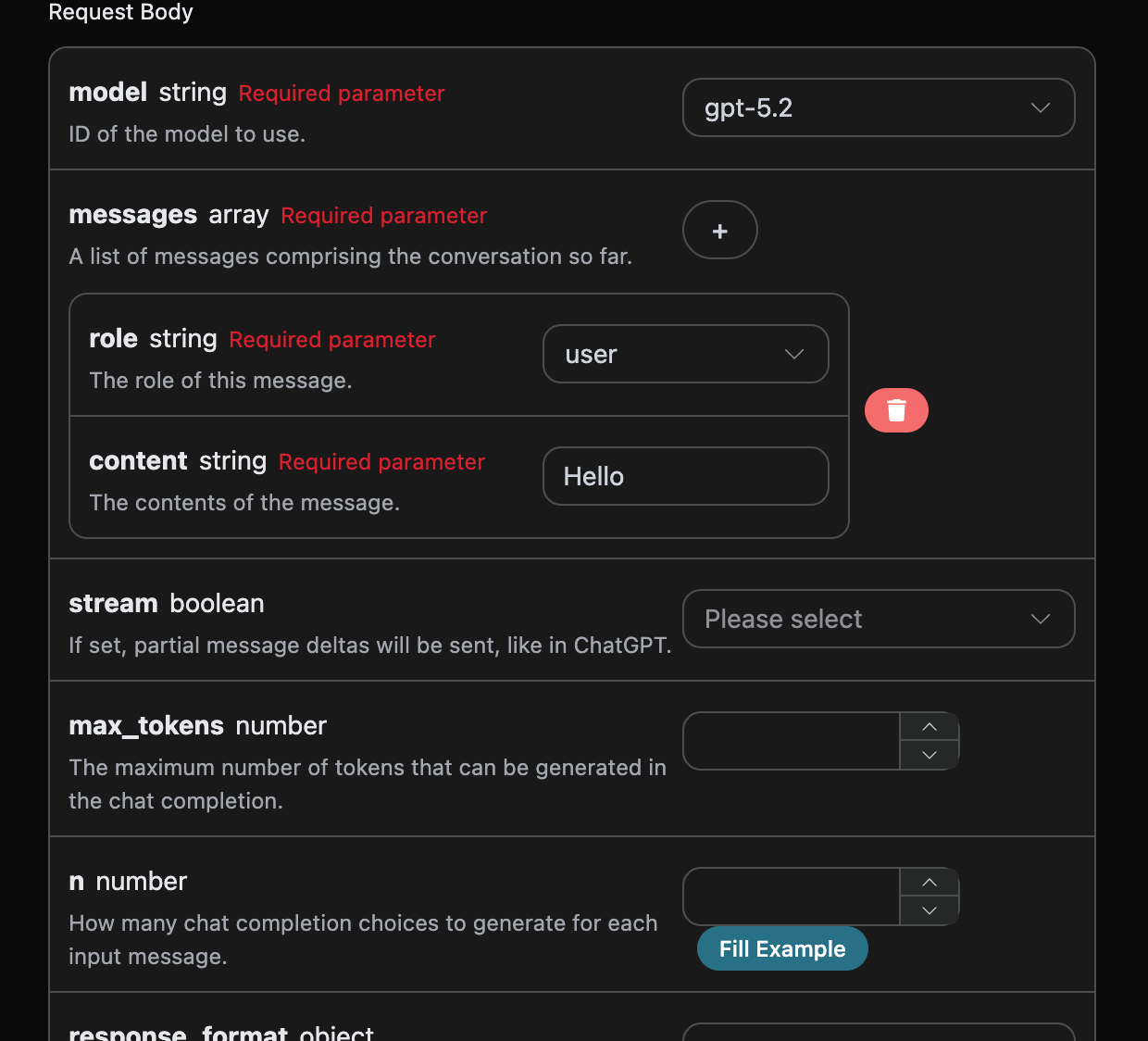
When using this API for the first time, we need to fill in at least three items. One is authorization, which can be selected directly from the dropdown list. Another parameter is model; model is the official OpenAI ChatGPT model category that we choose to use. Here, we mainly have 20 models, and you can view the models we provide for details. The last parameter is messages; messages is the array of prompt words we enter. It is an array, indicating that multiple prompt words can be uploaded at the same time. Each prompt word contains role and content, where role indicates the role of the questioner. We provide three identities: user, assistant, and system. The other field, content, is the specific content of our question.
At the same time, you can notice that there is corresponding call code generation on the right. You can copy the code and run it directly, or directly click the “Try” button for testing.
Common optional parameters:
max_tokens: Limits the maximum number of tokens in a single response.temperature: Generation randomness, between 0 and 2; the larger the value, the more diverse the output.n: How many candidate responses to generate at once.response_format: Return format settings.
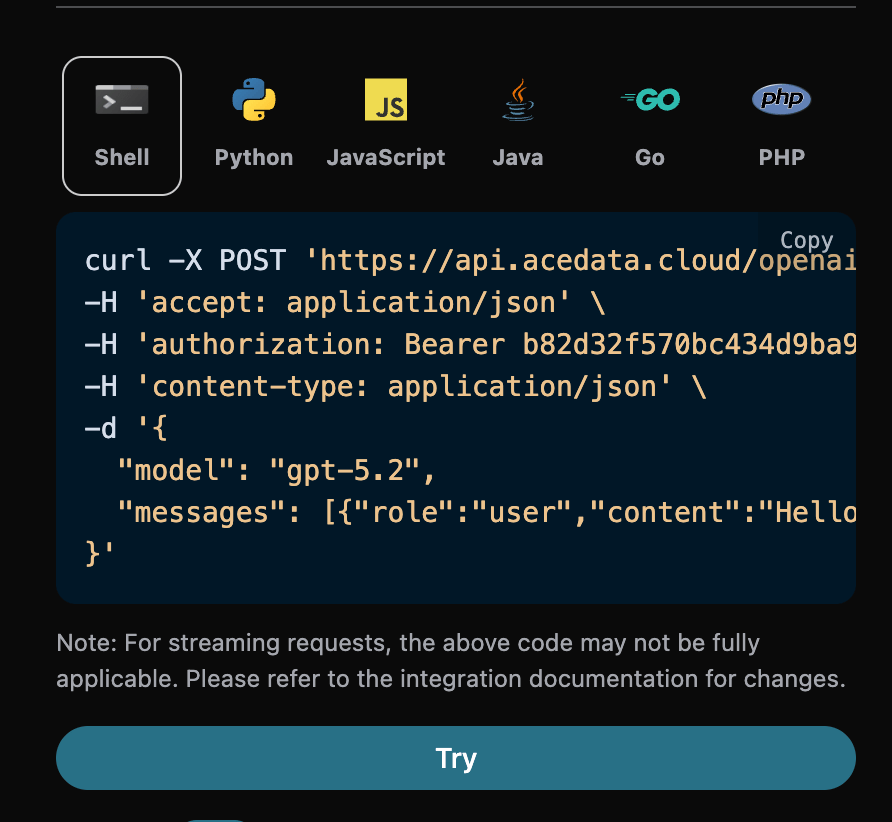
After the call, we find that the returned result is as follows:
{
  "id": "chatcmpl-Cmd6uwSxN75F4PAdQSFEO8f2QPs4E",
  "object": "chat.completion",
  "created": 1765706120,
  "model": "gpt-5.5",
  "choices": [
    {
      "index": 0,
      "message": {
        "role": "assistant",
        "content": "Hello! What can I help you with today?",
        "refusal": null,
        "annotations": []
      },
      "finish_reason": "stop"
    }
  ],
  "usage": {
    "prompt_tokens": 7,
    "completion_tokens": 13,
    "total_tokens": 20,
    "prompt_tokens_details": {
      "cached_tokens": 0,
      "audio_tokens": 0
    },
    "completion_tokens_details": {
      "reasoning_tokens": 0,
      "audio_tokens": 0,
      "accepted_prediction_tokens": 0,
      "rejected_prediction_tokens": 0
    }
  },
  "service_tier": "default",
  "system_fingerprint": null
}
The returned result contains multiple fields, introduced as follows:
id, the ID generated for this conversation task, used to uniquely identify this conversation task.model, the selected official OpenAI ChatGPT model.choices, the response information provided by ChatGPT for the prompt words.usage: statistical information about tokens for this Q&A. Among them,choicescontains ChatGPT's response information, and thechoicesinside it is ChatGPT, as shown in the figure.
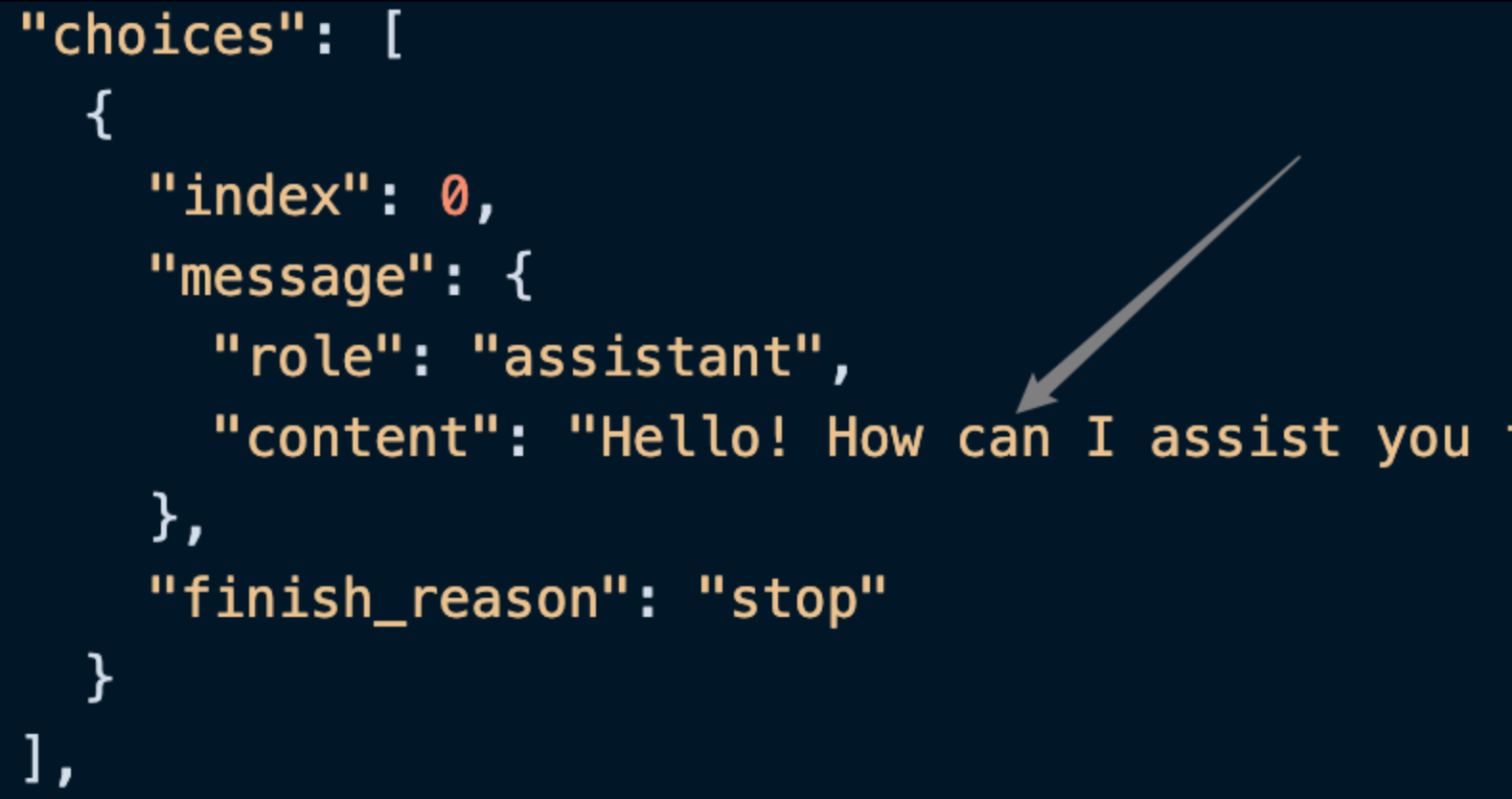
It can be seen that the content field inside choices contains the specific content of the ChatGPT reply.
¶ Streaming Response
This API also supports streaming responses, which is very useful for web integration and can allow web pages to achieve a word-by-word display effect.
If you want to return responses in a stream, you can change the stream parameter in the request header to true.
The modification is shown in the figure, but the calling code needs corresponding changes to support streaming responses.
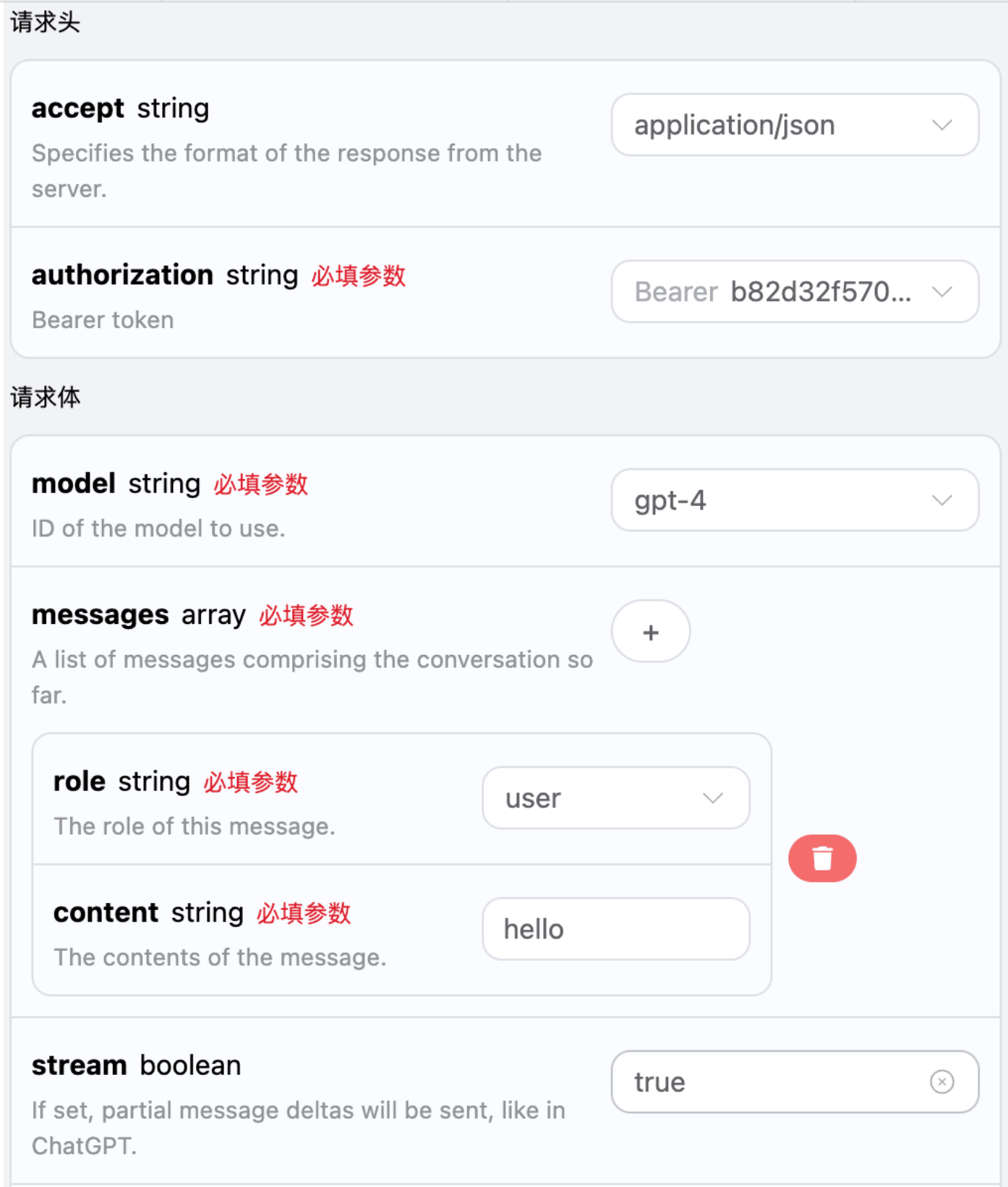
After changing stream to true, the API will return the corresponding JSON data line by line. At the code level, we need to make corresponding changes to obtain the line-by-line results.
Python sample calling code:
import requests

url = "https://api.acedata.cloud/openai/chat/completions"

headers = {
    "accept": "application/json",
    "authorization": "Bearer {token}",
    "content-type": "application/json"
}

payload = {
    "model": "gpt-4",
    "messages": [{"role":"user","content":"hello"}],
    "stream": True
}

response = requests.post(url, json=payload, headers=headers)
print(response.text)
The output is as follows:
data: {"choices": [{"delta": {"role": "assistant"}, "index": 0}], "created": 1721007348, "id": "chatcmpl-YzczYjVhNjhjMzMwNDQ5MDkyNGYzOGZjZGE1ZGQ5OGU", "model": "gpt-4", "object": "chat.completion.chunk", "recipient": "all"}

data: {"choices": [{"delta": {"content": "Hi", "role": "assistant"}, "index": 0}], "created": 1721007348, "id": "chatcmpl-YzczYjVhNjhjMzMwNDQ5MDkyNGYzOGZjZGE1ZGQ5OGU", "model": "gpt-4", "object": "chat.completion.chunk", "recipient": "all"}

data: {"choices": [{"delta": {"content": " there", "role": "assistant"}, "index": 0}], "created": 1721007348, "id": "chatcmpl-YzczYjVhNjhjMzMwNDQ5MDkyNGYzOGZjZGE1ZGQ5OGU", "model": "gpt-4", "object": "chat.completion.chunk", "recipient": "all"}

data: {"choices": [{"delta": {"content": "!", "role": "assistant"}, "index": 0}], "created": 1721007348, "id": "chatcmpl-YzczYjVhNjhjMzMwNDQ5MDkyNGYzOGZjZGE1ZGQ5OGU", "model": "gpt-4", "object": "chat.completion.chunk", "recipient": "all"}

data: {"choices": [{"delta": {"content": " How", "role": "assistant"}, "index": 0}], "created": 1721007348, "id": "chatcmpl-YzczYjVhNjhjMzMwNDQ5MDkyNGYzOGZjZGE1ZGQ5OGU", "model": "gpt-4", "object": "chat.completion.chunk", "recipient": "all"}

data: {"choices": [{"delta": {"content": " can", "role": "assistant"}, "index": 0}], "created": 1721007348, "id": "chatcmpl-YzczYjVhNjhjMzMwNDQ5MDkyNGYzOGZjZGE1ZGQ5OGU", "model": "gpt-4", "object": "chat.completion.chunk", "recipient": "all"}

data: {"choices": [{"delta": {"content": " I", "role": "assistant"}, "index": 0}], "created": 1721007348, "id": "chatcmpl-YzczYjVhNjhjMzMwNDQ5MDkyNGYzOGZjZGE1ZGQ5OGU", "model": "gpt-4", "object": "chat.completion.chunk", "recipient": "all"}

data: {"choices": [{"delta": {"content": " assist", "role": "assistant"}, "index": 0}], "created": 1721007348, "id": "chatcmpl-YzczYjVhNjhjMzMwNDQ5MDkyNGYzOGZjZGE1ZGQ5OGU", "model": "gpt-4", "object": "chat.completion.chunk", "recipient": "all"}

data: {"choices": [{"delta": {"content": " you", "role": "assistant"}, "index": 0}], "created": 1721007348, "id": "chatcmpl-YzczYjVhNjhjMzMwNDQ5MDkyNGYzOGZjZGE1ZGQ5OGU", "model": "gpt-4", "object": "chat.completion.chunk", "recipient": "all"}

data: {"choices": [{"delta": {"content": " today", "role": "assistant"}, "index": 0}], "created": 1721007348, "id": "chatcmpl-YzczYjVhNjhjMzMwNDQ5MDkyNGYzOGZjZGE1ZGQ5OGU", "model": "gpt-4", "object": "chat.completion.chunk", "recipient": "all"}

data: {"choices": [{"delta": {"content": "?", "role": "assistant"}, "index": 0}], "created": 1721007348, "id": "chatcmpl-YzczYjVhNjhjMzMwNDQ5MDkyNGYzOGZjZGE1ZGQ5OGU", "model": "gpt-4", "object": "chat.completion.chunk", "recipient": "all"}

data: {"choices": [{"delta": {"role": "assistant"}, "index": 0}], "created": 1721007348, "id": "chatcmpl-YzczYjVhNjhjMzMwNDQ5MDkyNGYzOGZjZGE1ZGQ5OGU", "model": "gpt-4", "object": "chat.completion.chunk", "recipient": "all"}

data: {"choices": [{"delta": {"role": "assistant"}, "finish_reason": "stop", "index": 0}], "created": 1721007349, "id": "chatcmpl-YzczYjVhNjhjMzMwNDQ5MDkyNGYzOGZjZGE1ZGQ5OGU", "model": "gpt-4", "object": "chat.completion.chunk", "recipient": "all"}

data: [DONE]
It can be seen that there are many data entries in the response, and the choices inside data is the latest response content, which is consistent with the content introduced above. choices is the newly added response content, and you can integrate it into your system based on the result. At the same time, the end of a streaming response is determined based on the content of data. If the content is [DONE], it means the streaming response has completely ended. The returned data result contains multiple fields, introduced as follows:
id, the ID generated for this conversation task, used to uniquely identify this conversation task.model, the selected model from the official OpenAI ChatGPT website.choices, the response information provided by ChatGPT for the query words.
JavaScript is also supported. For example, the streaming calling code for Node.js is as follows:
const options = {
  method: "post",
  headers: {
    accept: "application/json",
    authorization: "Bearer {token}",
    "content-type": "application/json",
  },
  body: JSON.stringify({
    model: "gpt-4",
    messages: [{ role: "user", content: "hello" }],
    stream: true,
  }),
};

fetch("https://api.acedata.cloud/openai/chat/completions", options)
  .then((response) => response.json())
  .then((response) => console.log(response))
  .catch((err) => console.error(err));
Java sample code:
JSONObject jsonObject = new JSONObject();
jsonObject.put("model", "gpt-4");
jsonObject.put("messages", [{"role":"user","content":"hello"}]);
jsonObject.put("stream", true);
MediaType mediaType = "application/json; charset=utf-8".toMediaType();
RequestBody body = jsonObject.toString().toRequestBody(mediaType);
Request request = new Request.Builder()
  .url("https://api.acedata.cloud/openai/chat/completions")
  .post(body)
  .addHeader("accept", "application/json")
  .addHeader("authorization", "Bearer {token}")
  .addHeader("content-type", "application/json")
  .build();

OkHttpClient client = new OkHttpClient();
Response response = client.newCall(request).execute();
System.out.print(response.body!!.string())
Other languages can be rewritten separately; the principle is the same.
¶ Multi-turn Conversations
If you want to integrate the multi-turn conversation feature, you need to upload multiple prompts to the messages field. A specific example of multiple prompts is shown in the figure below:
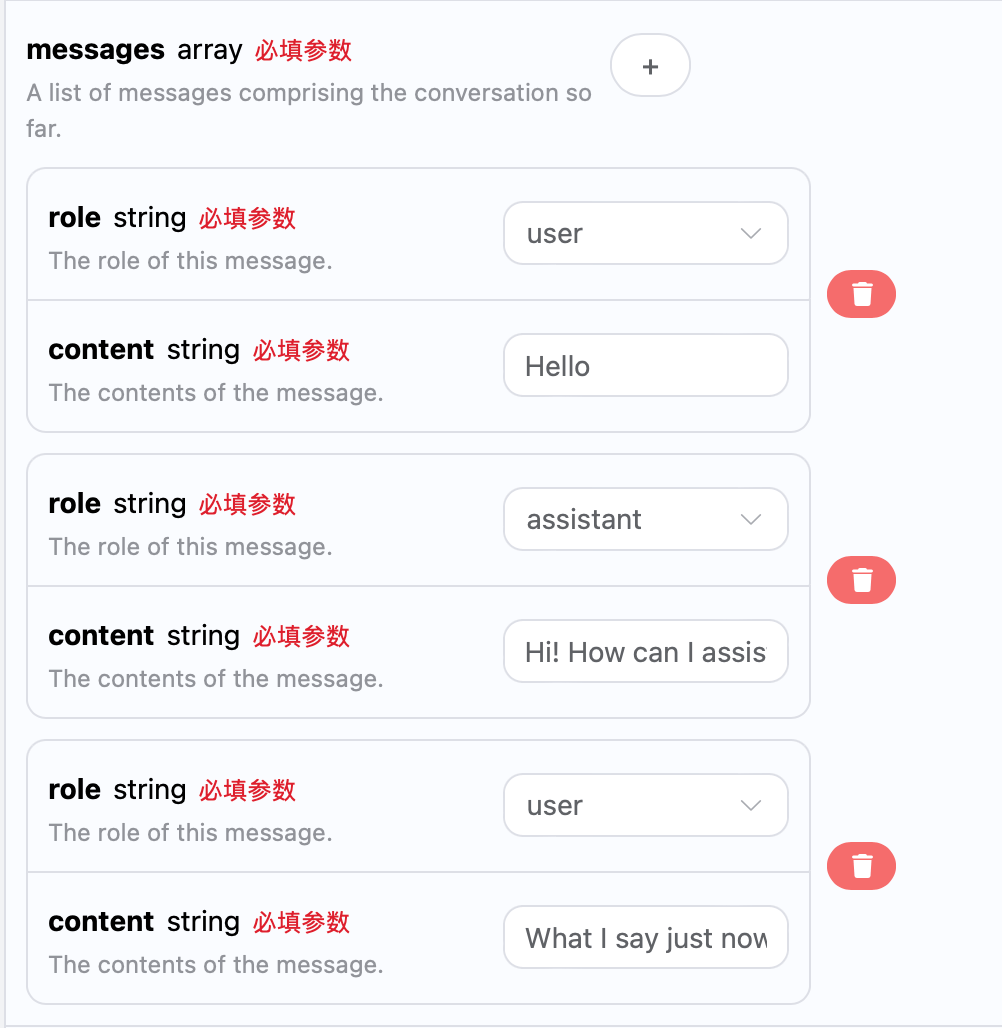
Python sample invocation code:
import requests

url = "https://api.acedata.cloud/openai/chat/completions"

headers = {
    "accept": "application/json",
    "authorization": "Bearer {token}",
    "content-type": "application/json"
}

payload = {
    "model": "gpt-4",
    "messages": [{"role":"user","content":"Hello"},{"role":"assistant","content":"Hi! How can I assist you today?"},{"role":"user","content":"What I say just now?"}]
}

response = requests.post(url, json=payload, headers=headers)
print(response.text)
By uploading multiple prompts, multi-turn conversations can be easily implemented, and the following response can be obtained:
{
  "choices": [
    {
      "index": 0,
      "message": {
        "role": "assistant",
        "content": "You said, \"Hello.\""
      },
      "finish_reason": "stop"
    }
  ],
  "created": 1721323012,
  "id": "chatcmpl-NWZmOTA5MDlkZjBjNDRjNGEwMzRjYzA5NmM1MzQwMWY",
  "model": "gpt-4",
  "object": "chat.completion.chunk",
  "recipient": "all",
  "usage": {
    "prompt_tokens": 31,
    "completion_tokens": 6,
    "total_tokens": 37
  }
}
As you can see, the information contained in choices is consistent with the basic usage content. This contains the specific content of ChatGPT's replies to multiple conversations, so the corresponding questions can be answered based on multiple conversation contents.
¶ Integrating OpenAI-Python
The OpenAI Chat Completion API is compatible with the official OpenAI interface and can be integrated directly using the official SDK OpenAI-Python. This article will briefly introduce how to use it.
- First, you need to set up a local
Pythonenvironment. You can search Google for this process. - Download and install a development environment, such as the VSCode editor.
- Configure the
OpenAIenvironment variables.
- In the project folder, create and save a file named
.env - Contents of the
.envfile:
OPENAI_API_KEY="sk-xxx"
OPENAI_BASE_URL="https://api.acedata.cloud/openai"  # Reminder again: If you use an official OpenAI key, do not use this address.
Replace sk-xxx with your own key. OPENAI_BASE_URL is the proxy endpoint for accessing OpenAI.
- Install the packages required by the project
pip install openai
The command on Mac OS is:
pip3 install openai
- Create a sample source code file
Assume that we create a sample code file index.py, with the following content:
import os
from openai import OpenAI

client = OpenAI(api_key=os.environ.get("OPENAI_API_KEY"))

response = client.chat.completions.create(
    messages=[
        {
            "role": "user",
            "content": "hello",
        }
    ],
    model="gpt-4",
)

print(response.text)
¶ Internet-Enabled Models
The gpt-3.5-browsing and gpt-4-browsing models differ from other models. They can perform internet searches based on prompts and return appropriately adjusted results from those searches. This article will demonstrate the internet-enabled feature through a specific example. Next, you can fill in the corresponding content on the OpenAI Chat Completion API interface, as shown in the figure below:
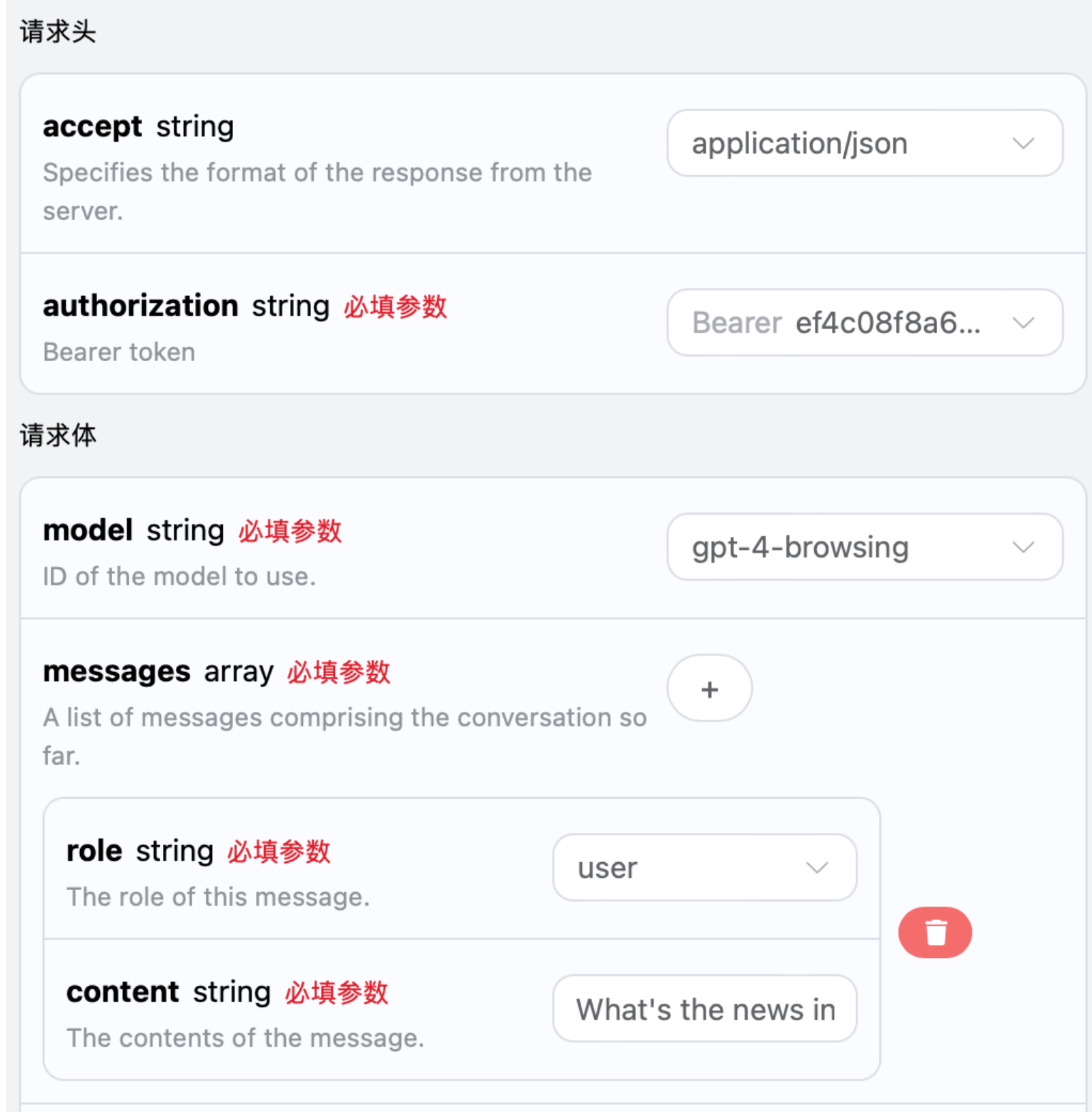
At the same time, you can notice that the corresponding invocation code is generated on the right. You can copy the code and run it directly, or click the “Try” button directly to test it.
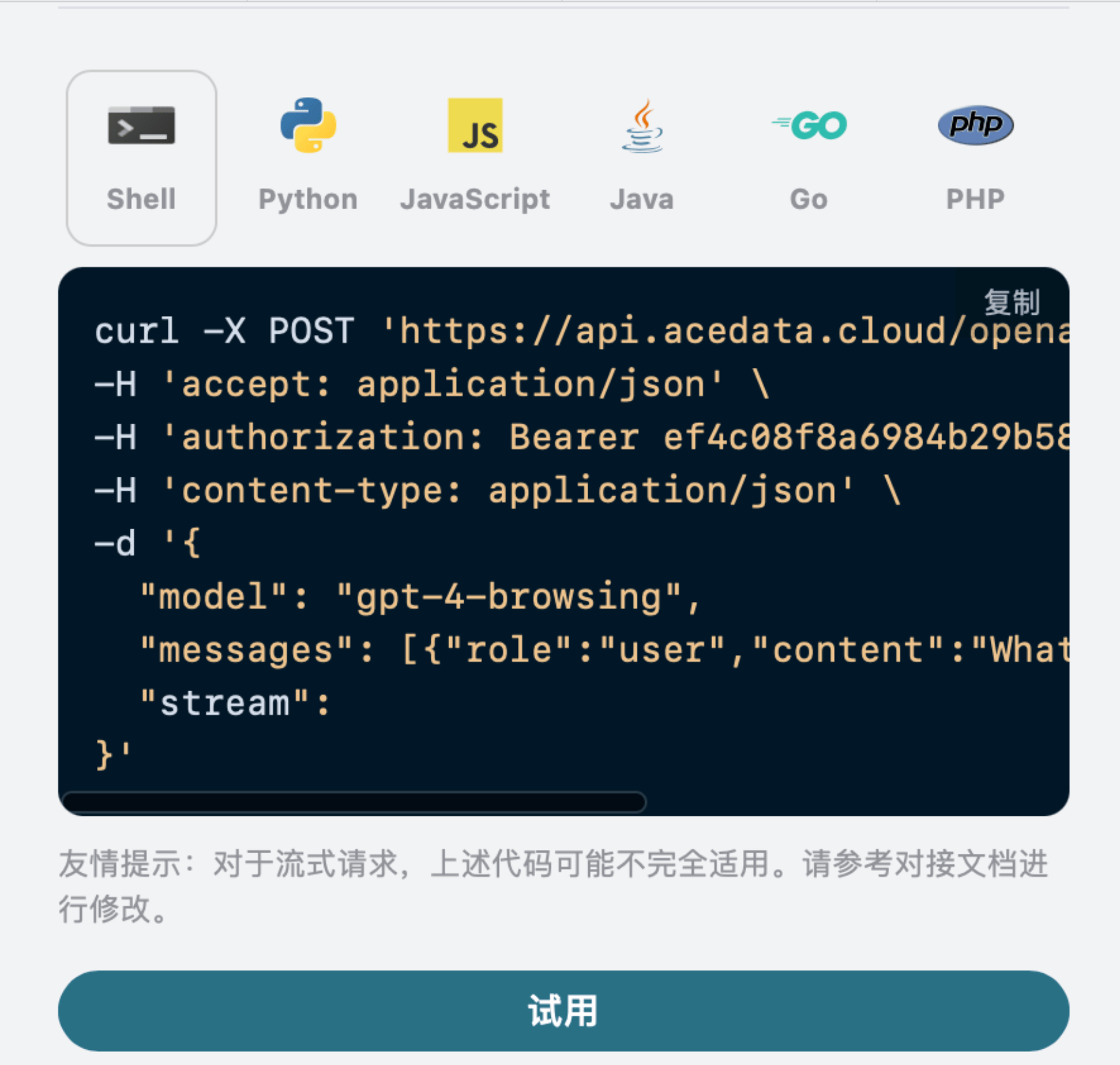
After the invocation, we find that the returned result is as follows:
{
  "choices": [
    {
      "index": 0,
      "message": {
        "role": "assistant",
        "content": "For the latest news in China today, you can check major news websites such as:\n\n- [BBC News China](https://www.bbc.com/news/world/asia/china)\n- [CNN China News](https://edition.cnn.com/china)\n- [Reuters China](https://www.reuters.com/news/archive/china-news)\n\nThese sources will have up-to-date information on current events in China."
      },
      "finish_reason": "stop"
    }
  ],
  "created": 1721009347,
  "id": "chatcmpl-YzA0M2RjZDVkYThlNDkxNTkzOThmZWQ4OGMzNzdhNzA",
  "model": "gpt-4-browsing",
  "object": "chat.completion.chunk",
  "recipient": "all",
  "usage": {
    "prompt_tokens": 325,
    "completion_tokens": 82,
    "total_tokens": 407
  }
}
As you can see, the response information in choices is obtained through internet-based queries, and related links are also provided. The response information in choices needs to be rendered using markdown syntax to achieve the best experience. Finally, this also demonstrates the powerful advantages of our model's internet-enabled feature.
¶ Vision Models
gpt-4o is a multimodal large language model developed by OpenAI. It adds visual understanding capabilities on the basis of GPT-4. This model can process both text and image inputs simultaneously, enabling cross-modal understanding and generation.
The text processing of the gpt-4o model is consistent with the basic usage described above. Below is a brief introduction to how to use the model's image processing capabilities.
The image processing capability of the gpt-4o model is mainly used by adding a type field based on the original content content. Through this field, it can be determined whether the upload is text or an image, thereby using the image processing capability of the gpt-4o model. The following mainly describes how to call this feature using Curl and Python in two ways.
- Curl script method
curl -X POST 'https://api.acedata.cloud/openai/chat/completions' \
-H 'accept: application/json' \
-H 'authorization: Bearer {token}' \
-H 'content-type: application/json' \
-d '{
    "model": "gpt-4o",
    "messages": [
      {
        "role": "user",
        "content": [
          {
            "type": "text",
            "text": "What'\''s in this image?"
          },
          {
            "type": "image_url",
            "image_url": {
              "url": "https://upload.wikimedia.org/wikipedia/commons/thumb/d/dd/Gfp-wisconsin-madison-the-nature-boardwalk.jpg/2560px-Gfp-wisconsin-madison-the-nature-boardwalk.jpg"
            }
          }
        ]
      }
    ]
  }'
- Python script method
import requests

url = "https://api.acedata.cloud/openai/chat/completions"

headers = {
    "accept": "application/json",
    "authorization": "Bearer {token}",
    "content-type": "application/json"
}

payload = {
    "model": "gpt-4o",
    "messages": [
        {
            "role": "user",
            "content": [
                {
                    "type": "text", "text": "What's in this image?"
                },
                {
                    "type": "image_url",
                    "image_url": {
                        "url": "https://upload.wikimedia.org/wikipedia/commons/thumb/d/dd/Gfp-wisconsin-madison-the-nature-boardwalk.jpg/2560px-Gfp-wisconsin-madison-the-nature-boardwalk.jpg"
                    }
                },
            ],
        }
    ]
}

response = requests.post(url, json=payload, headers=headers)
print(response.text)
Then the following result can be obtained. The field information in the result is consistent with the above, specifically as follows:
{
  "id": "chatcmpl-123",
  "object": "chat.completion",
  "created": 1677652288,
  "model": "gpt-4-vision-preview",
  "system_fingerprint": "fp_44709d6fcb",
  "choices": [
    {
      "index": 0,
      "message": {
        "role": "assistant",
        "content": "\n\nThis image shows a wooden boardwalk extending through a lush green marshland."
      },
      "logprobs": null,
      "finish_reason": "stop"
    }
  ],
  "usage": {
    "prompt_tokens": 9,
    "completion_tokens": 12,
    "total_tokens": 21
  }
}
It can be seen that the response content is based on the image. Therefore, through the above two methods, the text and image processing capabilities of the gpt-4-vision model can be easily used.
In addition to gpt-4o, there is also a lower-cost model called gpt-4o-mini. gpt-4o-mini is the latest generation large language model developed by OpenAI. It not only has a fast response speed, but is also cheaper and supports multimodality. For the use of the vision feature, refer to the content on using the gpt-4o model above.
¶ GPT-4o Image Generation Model
¶ Generating Images Based on a Reference Image
Below is an example of generating an image in a custom style based on an image. First, let's look at the image we input, as shown below:

It can be seen that the reference image is a picture of a real person. We can make it change to a different style, for example, turn it into an anime-style image. The specific request example is:
{
  "model": "gpt-4o-image",
  "messages": [
    {
      "role": "user",
      "content": [
        {
          "type": "text",
          "text": "生成动漫风格的图片,并且带上个帽子"
        },
        {
          "type": "image_url",
          "image_url": {
            "url": "https://cdn.acedata.cloud/qzx2z1.png"
          }
        }
      ]
    }
  ],
  "stream": false
}
Example result:
{
"id": "chatcmpl-89DPQxbLuyRNzH5YLCPYM5WElV3dm",
"object": "chat.completion",
"created": 1781020664,
"model": "gpt-4o-image",
"choices": [
{
"index": 0,
"message": {
"role": "assistant",
"content": "\n\n> 🎨 生成中...\n\n\n\n[点击下载](https://platform.cdn.acedata.cloud/download/20260609/0f7b6cf1b14843b1bab8e261fe5765b3.png)"
},
"logprobs": null,
"finish_reason": "stop"
}
],
"usage": {
"prompt_tokens": 100,
"completion_tokens": 122,
"total_tokens": 222,
"prompt_tokens_details": {
"text_tokens": 93,
"cached_tokens_details": {}
},
"completion_tokens_details": {}
}
}
Among them, the message.content in choices is the complete generated conversation result. The image is included in Markdown format (the image link is a temporary address, please download and save it in time). It can be seen that the generated image is indeed in anime style, specifically as shown in the image below:

¶ Generating Images from Text Only
We can use a prompt to make it generate an image and return it to us as a conversational result. Below, we use 创建一张未来城市日落的图片 as an example. The specific example is as follows:
{
  "model": "gpt-4o-image",
  "messages": [
    {
      "role": "user",
      "content": [
        {
          "type": "text",
          "text": "创建一张未来城市日落的图片"
        }
      ]
    }
  ],
  "stream": false
}
Example result:
{
"id": "chatcmpl-89DqkpQoPGkQqJ6kPKMKWejjLXVxQ",
"object": "chat.completion",
"created": 1781020587,
"model": "gpt-4o-image",
"choices": [
{
"index": 0,
"message": {
"role": "assistant",
"content": "\n\n> 🎨 生成中...\n\n\n\n[点击下载](https://platform.cdn.acedata.cloud/download/20260609/ed2cca68732540fc99162ddc10ddc153.png)"
},
"logprobs": null,
"finish_reason": "stop"
}
],
"usage": {
"prompt_tokens": 17,
"completion_tokens": 104,
"total_tokens": 121,
"prompt_tokens_details": {
"text_tokens": 10,
"cached_tokens_details": {}
},
"completion_tokens_details": {}
}
}
It can be seen that the result conforms to the prompt, specifically as follows:

¶ Generate One Image from Multiple Images
We can also use multiple reference images to generate one image. For example, using an image of a handsome man and an image of coffee, these two images can be used to generate an image of a handsome man drinking coffee. Below are the specific reference images:


Below, we use Generate a man holding coffee and about to drink it as an example. Below is the specific example:
{
  "model": "gpt-4o-image",
  "messages": [
    {
      "role": "user",
      "content": [
        {
          "type": "text",
          "text": "Generate a man holding coffee and about to drink it"
        },
        {
          "type": "image_url",
          "image_url": {
            "url": "https://cdn.acedata.cloud/pqquv3.jpg"
          }
        },
        {
          "type": "image_url",
          "image_url": {
            "url": "https://cdn.acedata.cloud/h8j2i0.jpg"
          }
        }
      ]
    }
  ],
  "stream": false
}
Sample result:
{
"id": "chatcmpl-89DnHbbzOIQvU1VzJrNjzMU8BRUgG",
"object": "chat.completion",
"created": 1781021018,
"model": "gpt-4o-image",
"choices": [
{
"index": 0,
"message": {
"role": "assistant",
"content": "\n\n> 🎨 Generating...\n\n\n\n[Click to download](https://platform.cdn.acedata.cloud/download/20260610/f1d9ddee3c304230a9f92929f04b95be.png)"
},
"logprobs": null,
"finish_reason": "stop"
}
],
"usage": {
"prompt_tokens": 193,
"completion_tokens": 116,
"total_tokens": 309,
"prompt_tokens_details": {
"text_tokens": 186,
"cached_tokens_details": {}
},
"completion_tokens_details": {}
}
}
As you can see, the generated result indeed combines the two images. Below is the specific result:

¶ Error Handling
When calling the API, if an error occurs, the API will return the corresponding error code and information. For example:
400 token_mismatched: Bad request, possibly due to missing or invalid parameters.400 api_not_implemented: Bad request, possibly due to missing or invalid parameters.401 invalid_token: Unauthorized, invalid or missing authorization token.429 too_many_requests: Too many requests, you have exceeded the rate limit.500 api_error: Internal server error, something went wrong on the server.
¶ Error Response Example
{
  "success": false,
  "error": {
    "code": "api_error",
    "message": "fetch failed"
  },
  "trace_id": "2cf86e86-22a4-46e1-ac2f-032c0f2a4e89"
}
¶ Conclusion
Through this document, you have learned how to easily implement the conversation functionality of the official OpenAI ChatGPT using the OpenAI Chat Completion API. We hope this document can help you better integrate and use this API. If you have any questions, please feel free to contact our technical support team.